How to Upload Files to Keep2Share Using Drag-and-Drop
Uploading files should be quick and effortless, and Keep2Share makes that possible with its drag-and-drop feature. Instead of browsing through multiple folders every time you upload, you can simply drag your files directly into the upload window. This saves time, reduces unnecessary clicks, and creates a smoother workflow for both personal and professional file sharing.
-> Go to k2s.cc and create Premium Account
Why Use Drag-and-Drop Uploads?
The drag-and-drop method is designed for convenience. It works well for documents, images, videos, compressed archives, and other large files.
Some of its biggest advantages include:
- Faster uploads with fewer steps
- Easy handling of multiple files at once
- Reduced chance of selecting the wrong file
- More efficient workflow for frequent uploads
- Simple interface for beginners
How to Upload Files Using Drag-and-Drop
Follow these simple steps:
- Sign in to your Keep2Share account.
- Open the Upload page from your dashboard.
- Locate the files or folders on your computer.
- Drag them into the designated upload area.
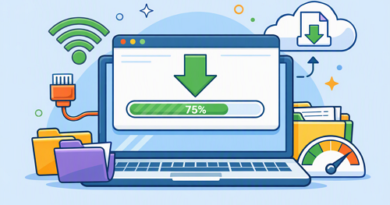
- Wait for the progress bar to reach 100%.
- Copy the generated download or sharing link once the upload finishes.
For larger files, avoid closing your browser until the upload is complete to prevent interruptions.
Drag-and-Drop vs Manual File Selection
| Method | Speed | Ease of Use | Best For |
|---|---|---|---|
| Drag-and-Drop | Fast | Excellent | Multiple or large files |
| Browse Button | Moderate | Very Good | Individual files |
Tips for Better Upload Performance
For the best experience:
- Use a stable internet connection.
- Compress large folders before uploading.
- Organize files into clearly named folders.
- Upload during periods of lower network activity if your connection is busy.
- Consider a Premium account for higher upload limits and improved overall performance.
The drag-and-drop feature is one of the easiest ways to upload files efficiently while keeping your workflow simple and organized. Pairing this method with the right download setup creates an even smoother experience. You can also compare browser downloads vs download managers to determine which option delivers the best performance for your workflow.